

SUMMARY
Connect Obsero to Claude in a few minutes. This guide walks you through adding Obsero as a custom connector in the Claude desktop app, so you can query your AI visibility data directly in conversation.


Step 1 - Open Claude settings
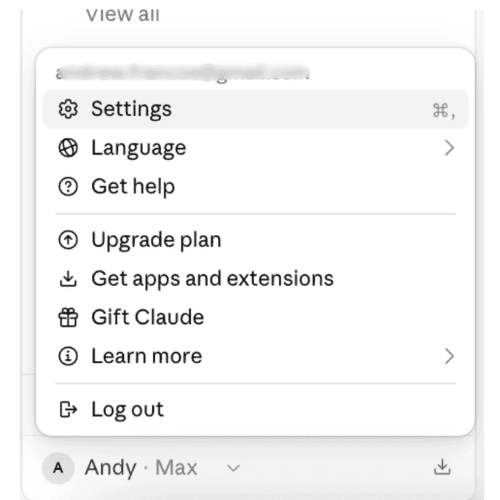
Open your desktop Claude app and click Settings.
Step 2 — Go to Connectors
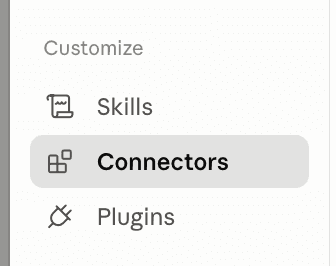
Under Customise, click Connectors.
Step 3 — Add a custom connector
At the top of the panel, click Add custom connector.

Step 4 — Enter the Obsero MCP details
In the custom connector dialog, fill in:
Name: Obsero
MCP URL: https://mcp.obsero.ai

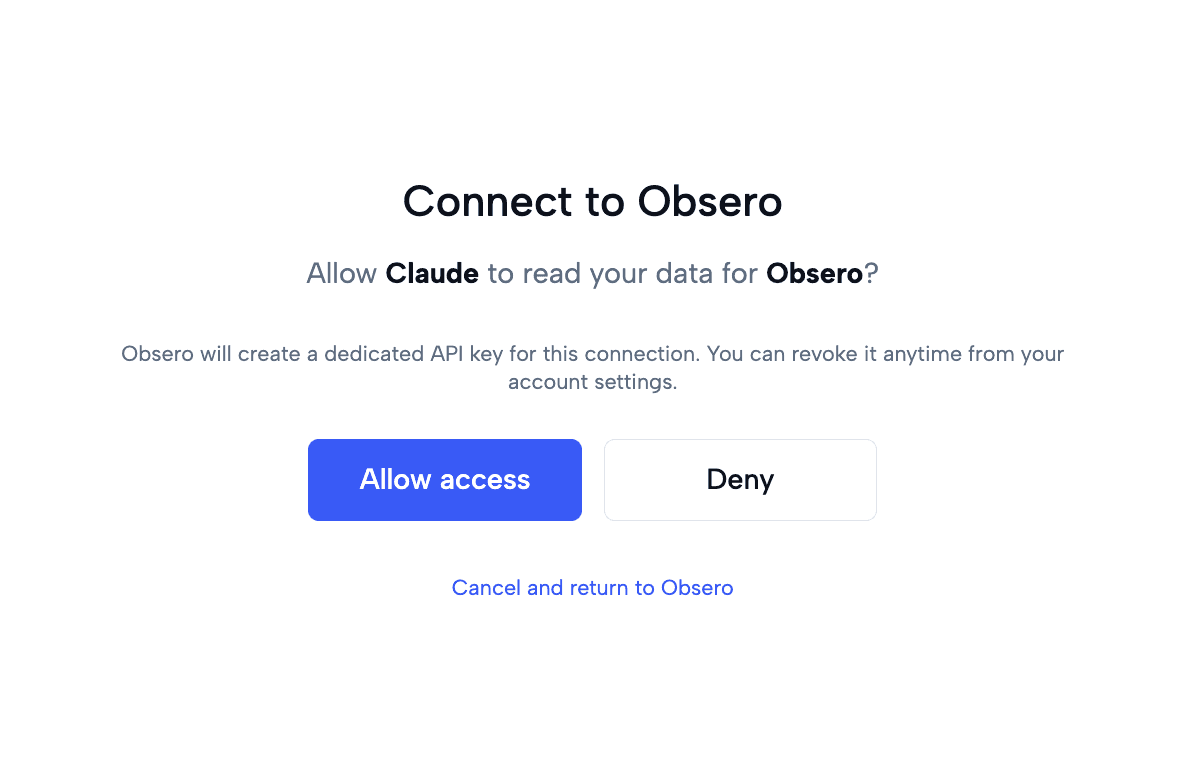
Step 5 — Allow access
Step 6 — Return to Claude
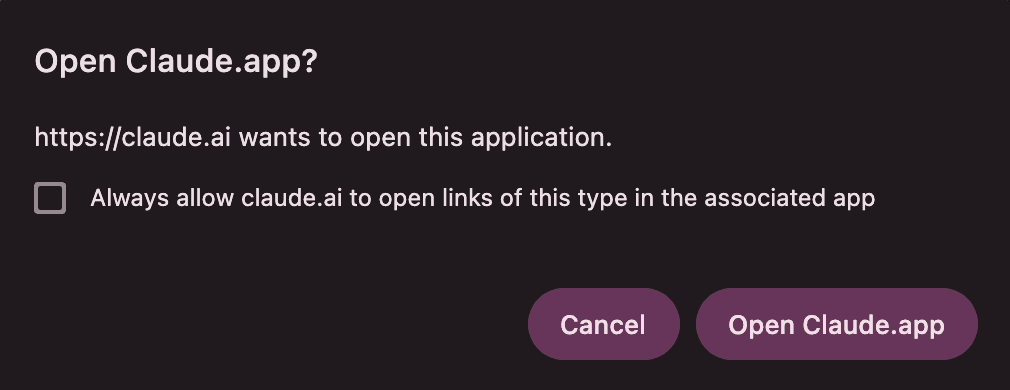
Click Open the Claude app to return to the desktop app.
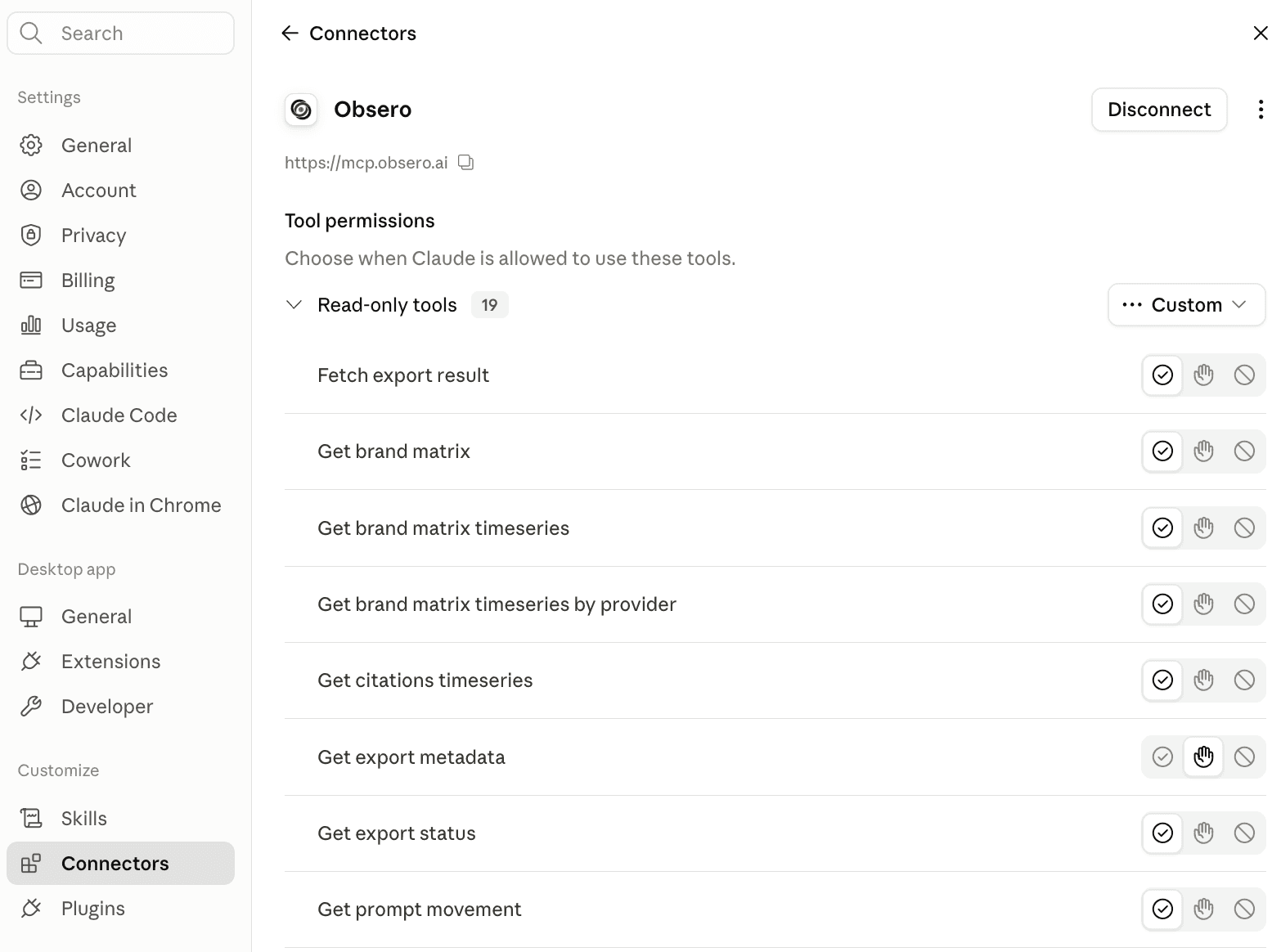
Step 7 — Confirm the connection
You'll see a screen confirming you're connected to the Obsero MCP.
Step 8 — Check it's working
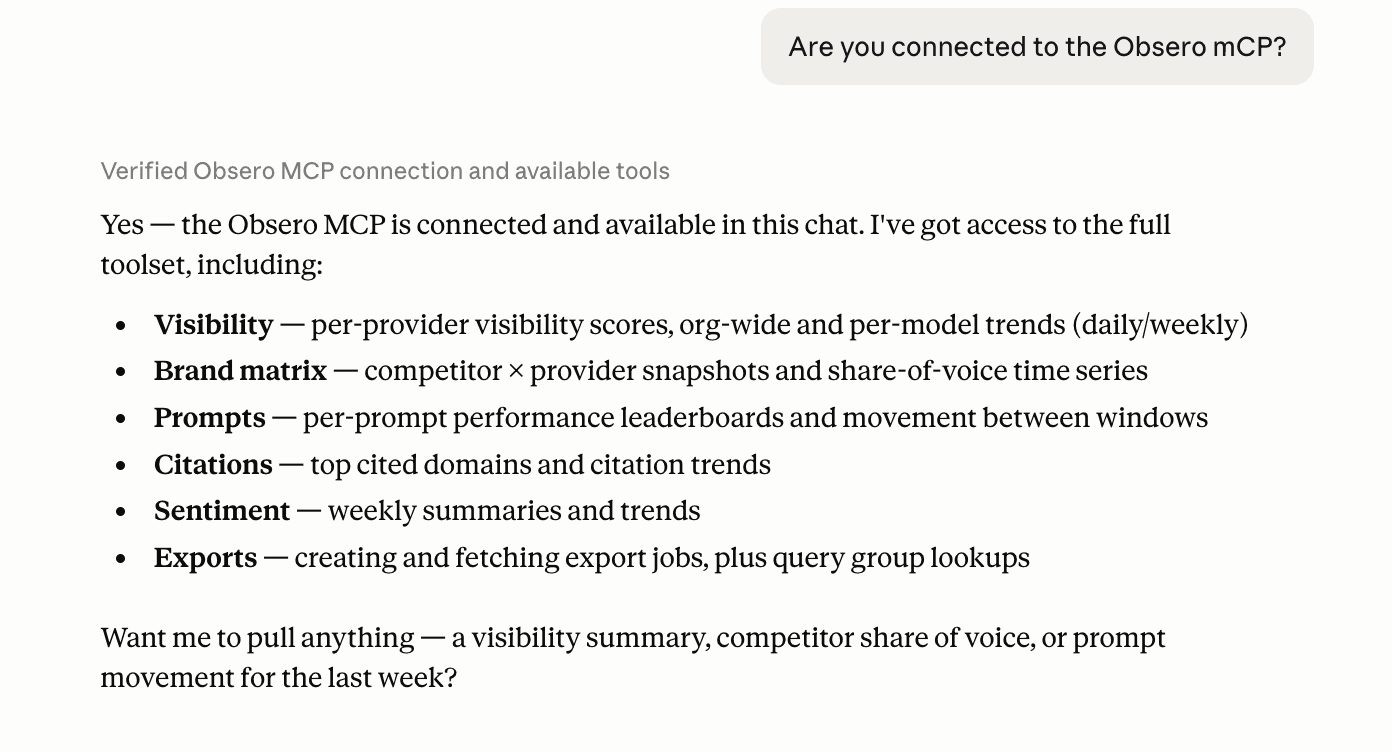
Ask Claude whether it's connected to the Obsero MCP to confirm everything is live.
Step 9 — Start querying your data
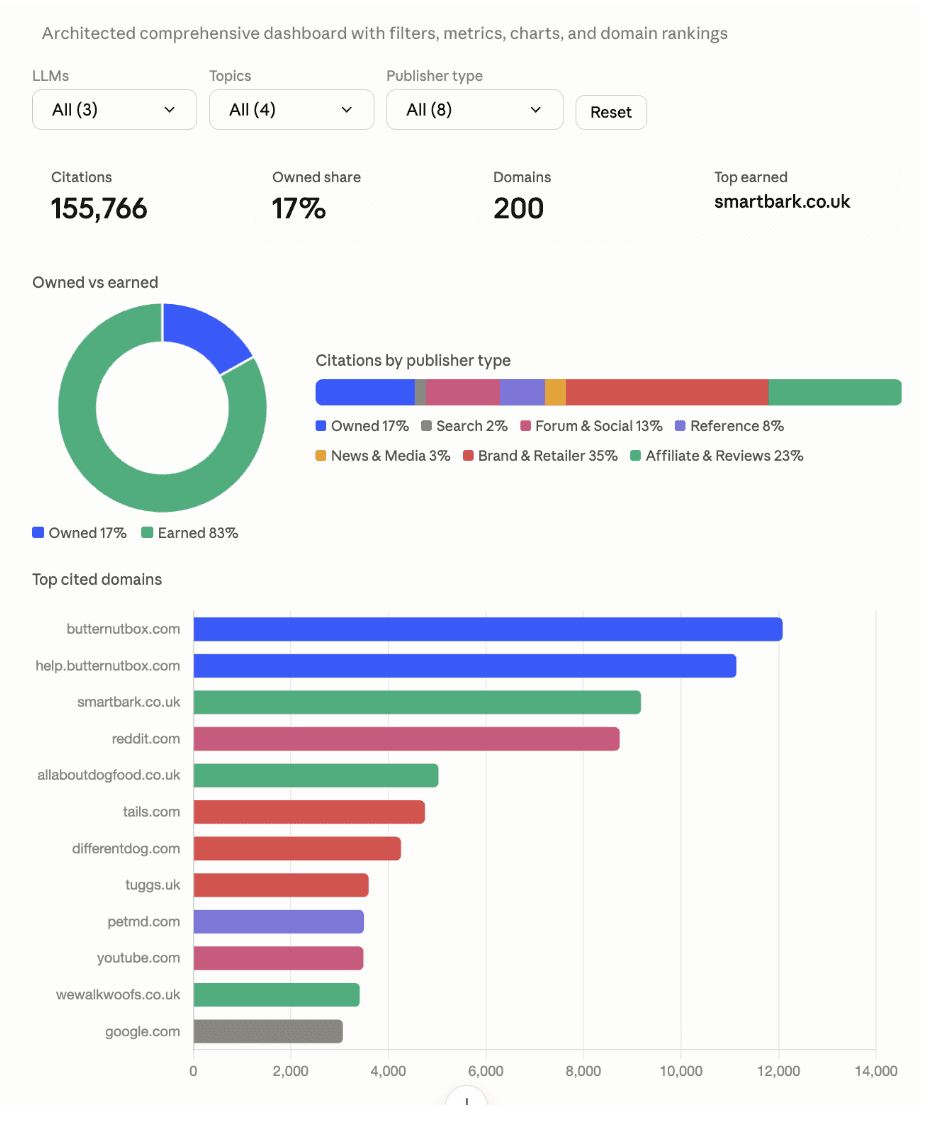
You can now query Obsero directly in Claude to pull in your AI visibility data and analyse it — share of voice, citations, sentiment, prompt performance and more.
Growth through intelligence
Capture your brand’s historic visibility, recommendation and sentiment data from AI Search in one intuitive platform